Having trouble enabling your passkey?
Ethena Pay uses a passkey instead of a password. Your iPhone keeps that passkey inside a password app — and if none of them is switched on, the setup step has nowhere to put it.
If you tapped Enable and nothing seemed to happen, this is almost always why. It is a settings problem rather than anything you did wrong, and it takes about a minute to sort out.
1. You need somewhere to keep the passkey
Your iPhone already has somewhere. It is an app called Passwords, and it can do this. If you would rather use a manager like 1Password, Bitwarden or Dashlane, those work too.
Do not have the one you want yet? Get it from the App Store, then come back to this page.
2. Open AutoFill & Passwords
On your iPhone: Settings → General → AutoFill & Passwords. The list under “AutoFill from:” is every app allowed to fill in your details for you.
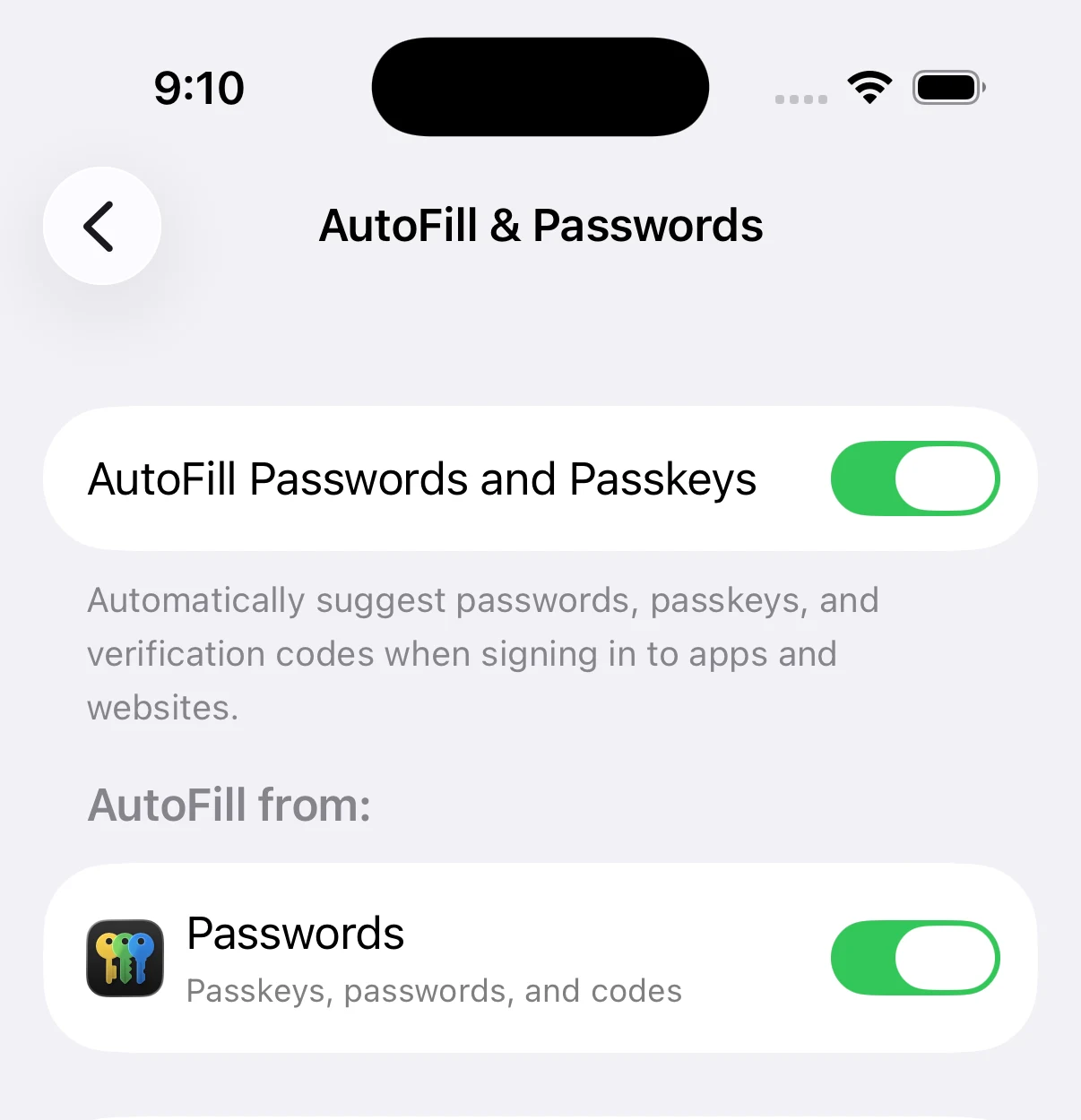
3. Read the small grey text — this is what catches most people out
Two apps can look identical in this list, and only one of them can save a passkey. The giveaway is the small grey line under the name:
An app that only saves passwords will not work here, even though it sits in the same list and looks like it should. That is the whole trick.
4. Two switches, not one
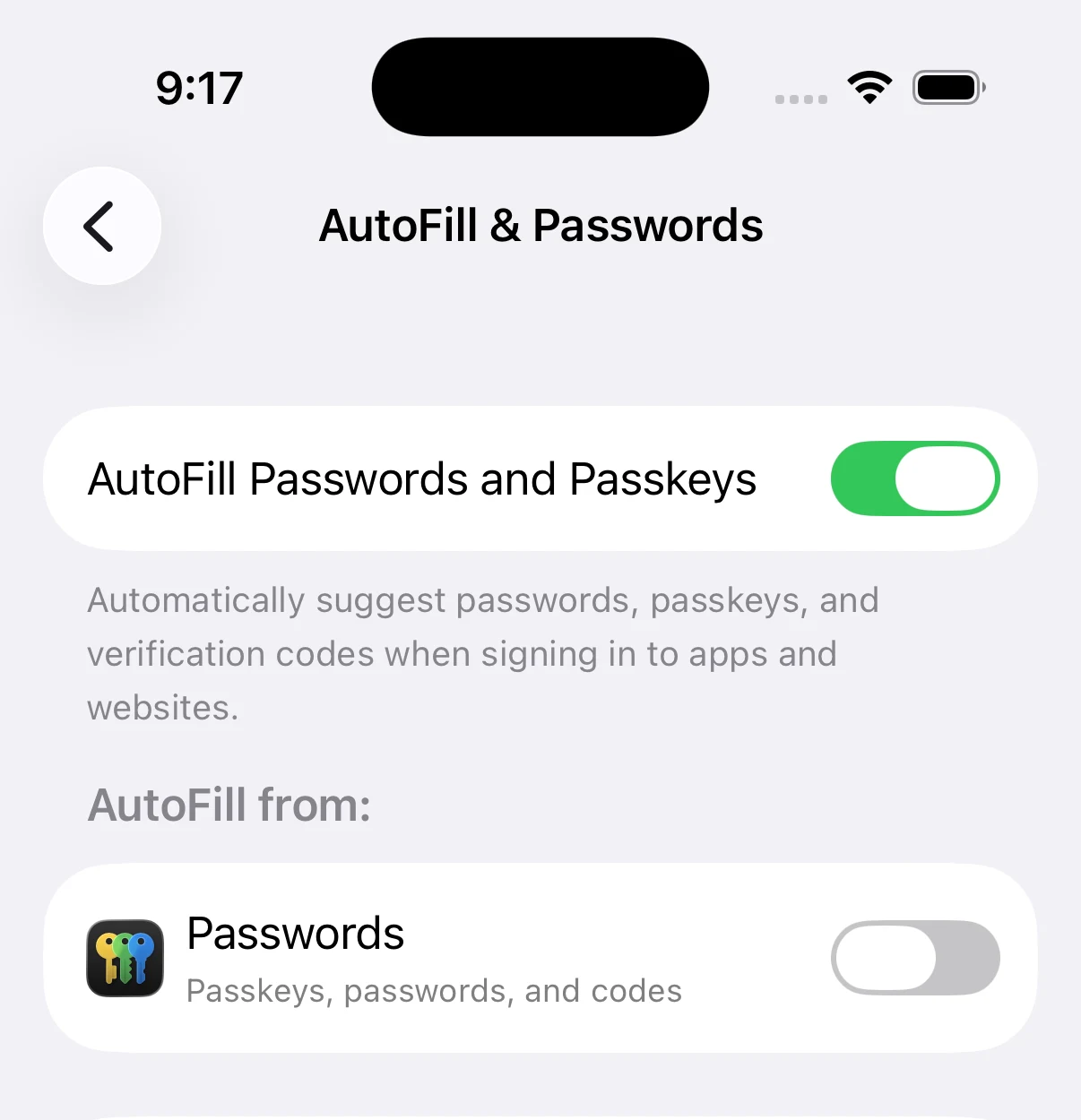
Turning on the top switch by itself is not enough. You need both:
- AutoFill Passwords and Passkeys — the switch at the top of the screen.
- The switch next to the app itself, down in the “AutoFill from:” list.
The top switch can be green while every app below it is off. At a glance that looks right. It still will not work:
5. Nothing in your list can save passkeys?
If nothing in the list says “Passkeys, passwords, and codes”, get the Passwords app from the App Store, or install a manager like 1Password. Then come back to Settings → General → AutoFill & Passwords and turn it on.
Now try again
Go back to Ethena Pay and tap Enable on the passkey screen. This time your iPhone should offer you somewhere to save it.
Still stuck? Email us at support@ethenapay.co, and tell us which apps show up in your “AutoFill from:” list. That one detail usually tells us exactly what is going on. You can also reach us through Support.
Why a passkey and not a password?
A passkey is your Face ID or fingerprint instead of a password. Nothing to remember, nothing to type, and nothing anyone can phish out of you or reuse from another site. It is also what keeps your account safe, which is why this step cannot be skipped.